
DataFrameCreator (“DFC”) in the Datalytics library is designed to be the main object to bring data into the model in a batchwise manner. Typical sources of data are Excel files (plant data downloaded via Historian or DCS modules) or CSV files with more support to be created for databases in the second half of 2025.
When a new DFC is created, the default settings force you to show the location of the data file. We advise you to put your data in a “\Datasets” subfolder (one folder below where the model is located). The object remembers the relative path such that when you transfer the model to another person, the model will keep working as long as the data file is also transferred and located in the same relative location.
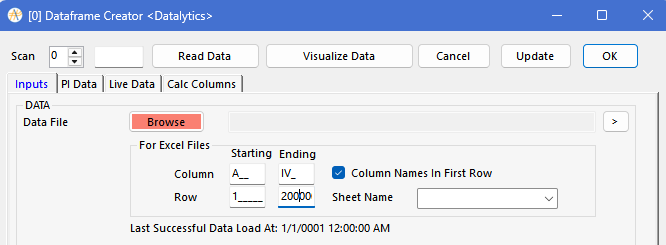
After selecting the file, sheet names are found, and the dropdown is populated with available sheet names. You must select the correct sheet name and press “Update” followed by “Read Data”. If the chosen sheet name contains no data in the first 5 consecutive columns or the first few rows, DFC will give up looking for any more data and return with the range modified as A1:A1 instead of the default A1:IV200000.
Once you choose a valid sheet name and read the data, DFC’s auto data detector follows these rules:
- Looks for column names (headers) in the first non-blank row. We advise you not to leave any blank rows at the top. We highly recommend that you use headers (descriptive with spaces is allowed) that are not too long since these strings will be used to populate various SharpBot analysis objects and dropdowns. Very long header strings may be difficult to differentiate later in your analysis as different variables.
- DFC will read 200,000 rows (including any blank rows if your data is <200,000 rows). From a random selection of rows, it attempts to figure out the type of data (e.g. datetime, numbers, strings, boolean) in each column
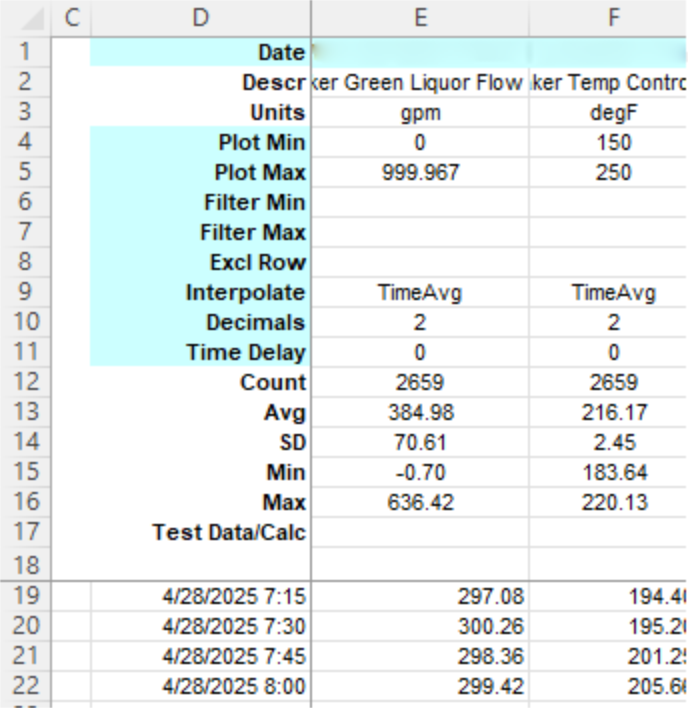
- Once data types are understood, it will go from the row below the headers until it finds data in the next 20 rows. This allows you to place some rows for summary, statistics etc in Excel as long as the first “real data” row is a complete row with no missing entries. In the picture below, headers are captured from row 1 starting in column D. Columns A, B and C are ignored because they were blank. The first real row of data was correctly identified as row 19 because rows 2-17 in the first column of data contained strings and DFC expected a date! If that was not the case, it could misidentify data starting in row 2 or any other wrong row between 2-19.
- If you had a number in row 18, DFC confuses it with a date and to make matters worse, it assumes that the value in row 18 was in fact the starting time stamp.

- Once it decides the starting data row, it will read until the data ends or to row 2000
During the first run, it will identify the correct number of columns for your data as well as the valid number of rows. If the actual data exceeds 2000 rows, you can adjust the ending row # value.
Once you are satisfied that the correct data range on the correct sheet is being read, adjust the range further to decide which parts of the data you wish to use.
- If your data contains multiple date vs value columns (they MUST be in pairs), DFC will treat the time series data correctly.
- We recommend not leaving blank columns in between valid data columns
- Jagged or missing data is allowed. You may choose to fill in the missing data using one of several methods available in DFC
Confirm that DFC read your data correctly by reviewing the “Sample Data” table in the Outputs tab. The table contains a sample of data: it starts with the top rows of data and ends with the bottom most rows of data. If DFC is confused about the start of data, you will notice mistakes in the top or bottom rows.
For the most reliable operation:
- Supply Excel data with no blank columns or rows to the left and top
- Use descriptive but short headers in the first row
- Missing data is OK
- Supply the data range manually – it is good to start with auto-detect but better to define the column names in the ranges. The number of rows is adjusted automatically to reflect the number rows of data read
In case of DFC data reading failures, check error logs.
If the file is locked by Excel due to errors, use the task manager to kill the process “Excel”.